Posts

Automatic JVM Upgarde in WebLogic 12.2.1.0.0 Without Disturbing End Users

Image
Environment Details: ================= 1) Current JVM Version is  "1.8.0_65" and Planning to Upgrade it to "1.8.0_92" 2) Lets Place JVM Binaries "1.8.0_92" in Parallel With Old JVM on All Nodes. 3) Connect to AdminServer Using WLST connect('weblogic','welcome1','t3://192.168.142.131:7001') 4) Execute Below WLST command for Upgrading JVM progress=rolloutJavaHome('prod_domain','/oracle/jvm/jdk1.8.0_92') progress.getStatus() Note: Remember While Upgrading AdminServer Node Admin Console Will Not Be Available.After Upgrading JVM on Admin Node you will be able to access Admin Console( Everything Is Automatic Process ) 5)  AdminServer node JVM is Upgraded to  "1.8.0_92" And Started Upgrading Managed Server ms2. 6) Managed Server ms2 Node JVM Upgraded to "1.8.0_92" And Started Upgrading Managed Server ms1 . 7) JVM Up gradation Completed On All Nodes.

Perform SSH Login Without Password Using ssh-keygen & ssh-copy-id

Step 1: Create public and private keys using ssh-key-gen on host jagan.abs.com [oracle@jagan ~]$ ssh-keygen Generating public/private rsa key pair. Enter file in which to save the key (/home/oracle/.ssh/id_rsa): Enter Created directory '/home/oracle/.ssh'. Enter passphrase (empty for no passphrase): Enter Enter same passphrase again: Enter Your identification has been saved in /home/oracle/.ssh/id_rsa. Your public key has been saved in /home/oracle/.ssh/id_rsa.pub. The key fingerprint is: c9:31:0c:a6:b6:fc:ad:f7:bf:fa:a1:c5:b1:e5:24:11 oracle@jagan.abs.com [oracle@jagan ~]$ Step 2: Copy the public key to sahiti.abs.com using ssh-copy-id [oracle@jagan ~]$ ssh-copy-id -i ~/.ssh/id_rsa.pub sahiti.abs.com 28 The authenticity of host 'sahiti.abs.com (192.168.142.130)' can't be established. RSA key fingerprint is d7:73:15:b9:17:e3:9b:2d:19:b8:13:9e:e8:a5:cd:ef. Are you sure you want to continue connecting (yes/no)? yes Warn...

CFGFWK-60550: Encountered error: "Attribute "Password" is not set for user "weblogic"" during UNPACK in WebLogic 12.2.1.1.0

Image
1) Pack the Domain prod_domain using below command ./pack.sh -domain=/oracle/Middleware/user_projects/domains/prod_domain -template=wls_template12211.jar -template_name="wls_template12211" 2) Now Create Another Domain Called test_domain Using Above Template wls_template12211.jar  ./unpack.sh -domain=/oracle/Middleware/user_projects/domains/test_domain -template=/oracle/Middleware/oracle_common/common/bin/wls_template12211.jar -log_priority=ALL -log=test.log Error From Log File test.log ========================= 2016-08-24 06:02:36,974 SEVERE [9] com.oracle.cie.wizard.internal.engine.WizardControllerEngine - Wizard error cause com.oracle.cie.wizard.tasks.TaskExecutionException: CFGFWK-60550: Script execution aborted. CFGFWK-60550: Encountered error: "Attribute "Password" is not set for user "weblogic"". Error is logged to "null". CFGFWK-60550: See log for details.         at com.oracle.cie.wizard.domain.silent.ta...

How To Install Oracle WebLogic Server 12.2.1.1.0 Using Silent Mode ?

Image
Summary       1) Create OS User and Group      2) Create Required Directories      3) Assign The Ownership and Permission To Directories      4) Install the JDK and Export The JAVA_HOME in .bash_profile      5) Prepare The Response file.      6) Create The File oraInst.loc And add inventory_loc and inst_group      7) Start The WebLogic Server Binaries Installation Using Silent Mode      8) Create WebLogic Domain Using WLST. 1. Create OS User and Group        groupadd -g 54321 oinstall        useradd -u 54322 -g oinstall oracle        passwd oracle 2. Create Required Directories         mkdir -p /oracle/Middleware        mkdir -p /jdk/jvm 3. Assign The Ownership and Permission To Directories...

How To Start Weblogic Managed Servers Using WLST?

Image
Summary Connect To AdminServer Start Manager Server 1.Connect To AdminServer Syntax: wls:/offline> connect('adminusrname','adminpassword','AdminURL') Example: wls:/offline> connect('weblogic','welcome1','t3://192.168.145.128:7001') // ///2./

How To Start/Stop Weblogic AdminServer Using WLST?

Image
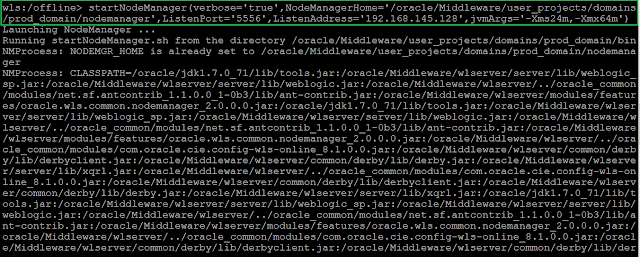
Summary 1) Start NodeManager 2) Connect To NodeManager 3) Start AdminServer 4) Stop AdminServer        a) Connect To AdminServer        b) Stop The AdminServer   1.Start NodeManager wls:/offline> startNodeManager(verbose='true',NodeManagerHome='/oracle/Middleware/user_projects/domains/prod_domain/nodemanager',ListenPort='5556',ListenAddress='192.168.145.128',jvmArgs='-Xms24m,-Xmx64m') 2.Connect To NodeManager wls:/offline> nmConnect('weblogic','welcome1','192.168.145.128','5556','prod_domain','/oracle/Middleware/user_projects/domains/prod_domain','plain') Connecting to Node Manager ... Successfully Connected to Node Manager. wls:/nm/prod_domain> 3.Start AdminServer wls:/nm/prod_domain> nmStart('AdminServer') 4.Stop AdminServer     a) Connect To AdminServer wls:/nm/prod_domain> connect('weblogic','welcome1',...

How To Start/Stop NodeManager Using WLST?

Image
1) Starting NodeManager using WLST Syntax: startNodeManager([verbose], [jvmArgs], [nmProperties]) - verbose = Optional. Boolean value specifying whether WLST starts  Node Manager in verbose mode. This argument defaults to false, disabling  verbose mode. - jvmArgs = Optional. JVM arguments to pass to the NodeManager process.  Multiple arguments can be specified, separated by commas. - nmProperties = Optional. Comma-separated list of Node Manager properties,  specified as name-value pairs. Node Manager properties include, but are not  limited to, the following: NodeManagerHome, ListenAddress, ListenPort, and  PropertiesFile. NOTE: In order to stop the Node Manager process, you must have either started Node Manager with startNodeManager or Node Manager must have been started with the property QuitEnabled=true. You can configure this property in $DOMAIN_HOME/nodemanager/nodemanager.properties file. This allows you to connect to the No...